
Beautiful Plants For Your Interior
Beautiful Plants For Your Interior

Unlock the full potential of your Zoom multi-effects processor with the use of impulse response files. Dive into the history of the Zoom brand, explore why IRs are essential for musicians, espacially for acoustic musical instruments, and learn step-by-step how to download and configure IRs using Guitar Lab software. Elevate your sound to new heights with this comprehensive guide.
Zoom Corporation is a Japanese company that produces a wide variety of electronic products for musicians, videographers, journalists, streamers, and more. The company offers microphones, mixers, recording cameras, effects pedals, and other products in the international market.
Founded in 1983 in Tokyo, the company initially focused on manufacturing drum machines and MIDI sequencers. In 1988, the brand introduced its first effects processor, the ZFX-1, followed by its first multi-effects unit, the 9002, in 1989. Since then, Zoom has diversified its offerings to reach a broader audience, continually expanding its range of products. While it has maintained its production of electronic devices for guitarists, its flagship products today are its compact portable recorders.
Impulse responses capture the acoustic characteristics of spaces and quantify them as data. By capturing the acoustic characteristics of a guitar signal emitted by a speaker recorded by a microphone, the features of this audio ensemble can be quantified as data and then used for effects.
Please note that some Zoom processors do not support loading Impulse Response files. All models inferior to the G6 (guitar) and B6 (bass) do not offer this feature. This includes the G1 Four, B1 Four, A1 Four, G3n, B3n, G5n, B2 Four, as well as their X versions. Make sure to check whether the Zoom multi-effects processor you have allows for loading impulse responses. It’s really unfortunate that these Zoom models don’t support this feature because impulse responses are undeniably an asset for any musician. This is especially regrettable since some processors are targeted towards musicians playing acoustic instruments. Nowadays, using IR files is the best way to get closer to the sound produced by a resonating body regardless of the acoustic instrument used (cello, double bass, acoustic guitar, etc.). If you don’t know where to find Impulse Response files, we have them in our shop.
At Zoom, all effects processors use the same software: Guitar Lab, available for both Mac and PC. The name of the software is a bit misleading because Zoom processors are not designed exclusively for guitarists. Indeed, Zoom offers ranges of devices intended for electric basses and certain acoustic instruments. However, the software used is always Guitar Lab, regardless of the processor model.
Download the latest version of Guitar Lab and install it on your computer. Then, connect your processor to your computer using a USB port and launch Guitar Lab. Take this opportunity to check if the firmware of the effects processor is up to date. Update it if necessary! Zoom multi-effects processors are updated using SD cards or USB drives depending on the model. Simply download the latest firmware version from the Zoom website, transfer the .ZUF file to the update support, and then initiate the update from the processor. The video below demonstrates how to do this with a Zoom G6 multi-effects processor.
IR files can be loaded either through the interface between your computer and the Zoom processor or by using physical storage media (SD card or USB drive depending on your processor). In the latter case, the principle is identical to the firmware update procedure.
Here, we will detail the method using the Guitar Lab software because it is always easier to create these presets from a computer with a large screen, keyboard, and mouse, rather than using the small screen and buttons of the device.
From the ‘IMPORT IR‘ tab, scroll down to find the slots designated for your own IRs (IR USER). Simply drag and drop your wav files into the slots you want to use to start downloading them to the unit.

The G11 comes with 106 factory-installed impulse responses. There are 70 included for the G6 model. Both processors allow loading up to thirty IR files from third-party sources. These IR files must be in mono wav format, with a sampling frequency ranging from 44.1 kHz to 192 kHz, with up to 2048 points.
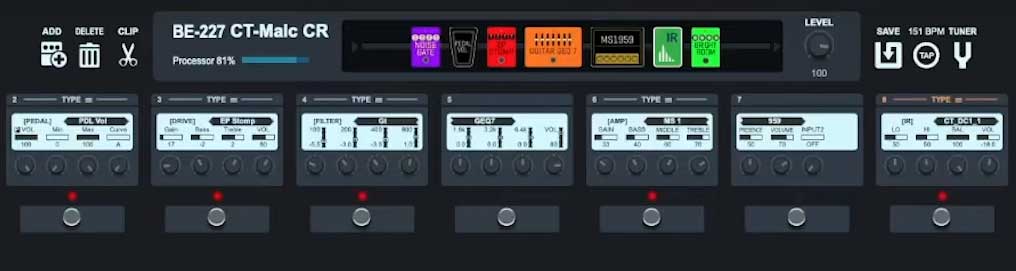
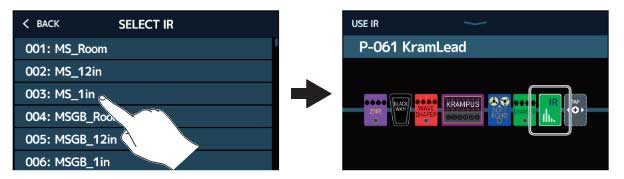
Configure the IRs in your presets by selecting the preset creation tab labeled ‘EDITOR‘ to add an IR module, or click the ‘USE IR‘ button if you are using the processor directly. The impulse response management module appears in the chain below in dark green. You can make some adjustments from there.
Sources: Zoom, YouTube

